





APSLearn

What is APSLearn?
APSLearn is the APS Academy's Learning Management System (LMS).
The APS Academy offers a wide range of learning options through APSLearn to support your work and career in the APS, including eLearning modules, and facilitated virtual and face-to-face courses. You can register for courses and complete eLearning modules through APSLearn.
Once registered, you can explore the catalogue on APSLearn. You can also find all the courses, course sessions, events and resources here on the Academy website by using the search function or exploring each of the craft or profession pages.
The APS Academy offers different types of delivery and program options to assist you and your agency to achieve your learning needs. To find out more go to the agency course offerings page.
Registering to APSLearn
Who can register for an APSLearn account?
APSLearn is available to public servants employed by an Australian Government agency. To register you will need to have an official government email account.
If you are a State, Territory or local government employee, access to APSLearn is limited and subject to operational requirements. Access may be granted or denied and is only available for a subset of learning offerings currently open to external participants. These offerings are subject to change at any time. A Request APSLearn Access form must be completed and approved before attempting to register.
How do I create an account?
If you don't already have an account, please:
- Go to apslearn.apsacademy.gov.au/register.
- Fill out the registration form and click register.
- After entering all relevant details, select ‘Register’. You will then receive an email with a link to verify your email address. Note: If your agency is not recognised on the ‘allowlist’, you will have to wait for your account to be approved before you are granted access.
- Once your account is verified and approved, you will be able to login to APSLearn and access the range of courses, resources and live-learning available.
How do I check to see if I have an account already?
Each account needs to have a unique email address. If you think you might have an account, you can complete the 'Forgot password' prompt. If you do not receive an email, you will most likely need to register.
How long does it take to receive the account verification email?
An email will be sent to you (generally within 30 - 60 minutes). If you have not received the email within this time frame, please check your Spam / Junk folder.
The email may take longer to be delivered due to the email security configuration of your agency. If you have not received the email within 24 hours, please contact your IT Support and please ask them to check if they have quarantined any emails from no-reply@apslearn.apsacademy.gov.au and to allowlist emails from this address.
If they are unable to retrieve the email, contact the APS Academy via the Contact Us webform requesting the verification link be resent.
The account verification link is sending me to a blank screen - What do I do?
The most likely because of this is that the verification link has timed out. Please contact the APS Academy via the Contact Us webform for the verification link to be resent.
Logging in to APSLearn
NOTIFICATION: APSLEARN LOGIN CHANGES ARE COMING
APSLearn is introducing Multi-Factor Authentication (MFA) and at a later stage for those participating agencies who have a VANguard account, Single Sign-On (SSO). Further information is below. NOTE: There will be no changes to the ‘APS Partner Content’ workflow for those agencies who currently use this option.
I have forgotten my APSLearn password - What do I need to do?
Under the login section on APSLearn click the section called ‘Forgot your password?' and enter your email address. You should then receive an email with a new temporary password.
If you do not receive an email after 30 minutes, please contact the APS Academy via the Contact Us webform and the team will contact you.
My account was created before 14 August 2026 and I am logging in manually. How do I select my chosen Multi-Factor Authentication?
Users who already have a profile, will initially start with the email MFA option as your email address has already been verified and recorded against their profile. After this point, you may add your mobile or create a passkey. To do this, you will need to update your profile or security settings.
How do I login manually using my chosen Multi-Factor Authentication?
This is a high-level overview of the steps.
- Navigate to APSLearn login page: https://apslearn.apsacademy.gov.au/user_login
- Under the manual login section, enter username and password.
You will be prompted to verify your identity using MFA. Select your preferred method based on the presented options.
Email (Default): Note: Users who already have a profile will initially start with an email MFA method as this has already been verified and recorded against their profile.
Mobile: only available if you have provided your details under your profile / security settings.
Passkey: only available if you have configured this option under your security settings.- Complete the MFA verification steps that you receive from your chosen MFA method.
- Once verified, you will then successful sign in.
NOTE: This workflow does not apply to users who are entering APSLearn via SSO – VANguard or APS Partner Content workflow.
| SMS | PASSKEY | |
Begin the login process by entering your username + password to login
| ||
| You will receive an email that looks like this, enter the code from the email, and you will successfully log into APSLearn. | You will receive an SMS that looks like this, enter the code from the SMS and you will successfully log into APSLearn. | User will be prompted to sign in using a saved passkey. In this case I’ve setup a passkey using my mobile device, so I will select ‘use a phone or tablet’. |
Enter the code here and press ‘Verify’.
| Enter the code here and press ‘Verify’.
| Enter the code here and press ‘Verify’.
|
| You are now verified and logged into APSLearn. | You are now verified and logged into APSLearn.
| You are now verified and logged into APSLearn.
|
Scan the QR code with your device. On iPhone, press ‘Sign in with Passkey’. Your device may present you with a slightly different workflow.
| ||
After scanning, and following the steps on my device, I am successfully signed in. | ||
What are the different MFA methods?
- Email: A one-time code is sent to your registered email address. If you have trouble accessing your primary email account, you can add a secondary email address under your profile. The code will be sent to both email addresses.
- SMS: A one-time code is sent to your registered mobile phone number. SMS messages can only be sent to selected supported countries, including Australia and New Zealand.
- Passkey: Device-based authentication using methods such as Face ID, fingerprint recognition, Windows Hello, or a hardware security key. If you cannot use your passkey, use Email or SMS at sign-in as recovery option. From your account settings you can add new passkeys, rename existing passkeys, or remove passkeys you no longer use (depending on your tenancy configuration).
Which MFA method am I allowed, can I choose which one to use?
Once configured, you will be prompted to authenticate using your selected preferred MFA method. This approach supports you in selecting the authentication method that best suits your workplace restrictions and personal circumstances. For example, some agencies do not permit mobile phones in the workplace.
Passkeys cannot be used as an MFA method until you have set up and created a Passkey against your profile. This can be done under ‘Security Settings’ once you’ve logged into your profile.
Do I need to Authenticate my MFA every time?
When logging in, you can select "Remember this device" during authentication. Trusted devices will bypass the MFA prompt for 7 days when using the same browser, although you will still be required to enter your password at each login. You can trust up to five devices, and trusted status is automatically removed if your password is changed. This feature reduces MFA prompts and provides a smoother sign-in experience.
I didn’t receive my MFA verification code. What do I do?
- Email codes: Check your junk/spam folder. Codes can take a few minutes to arrive. On the verification screen, select ‘Resend Code’ to request a new code. If you still do not receive follow the steps under 'account verification' email.
- SMS codes: confirm that the mobile number recorded against your profile is correct and that you have signal. Select ‘Resend Code’ to try again. A code is only valid for 5 minutes. If it has expired, request a new one rather than entering the old code.
- Still not arriving? Try a different available MFA method on the verification page (e.g. switch from email to SMS), then update your details once you’ve logged in. If none of your methods work, please Contact Us.
Don't forget, if your agency uses an Acorn LMS and has APS Partner Content enabled you can access APSLearn by:
- Login to your agency LMS.
- Go to Catalogue and select All filters.
- Select APS Shared Content, then select Apply.
- Select a learning experience which is hosted in APSLearn, then select OPEN IN shared APS Content. You will then move from your agency system into APSLearn.
How do I change my preferred MFA method?
After logging into APSLearn, select ‘Security Settings’ at the bottom of the page. Here you can select your preferred MFA method that you’ll be prompted with on the login screen.
Note: You have the option to choose a different MFA method on the login page if the preferred method is not available to you at the time.
To use a Passkey
- You must create and save a passkey under ‘manage passkeys’ before use as your preferred method. If you select passkeys and press save without creating a passkey, the method will not be available at login.
- To setup a passkey, click ‘Manage Passkey’, then click ‘Create Passkey’
- You will be prompted to setup a passkey. There are multiple types of devices (such as Face ID, fingerprint recognition, Windows Hello, or a hardware security key) that can store a passkey. .
- [mobile specific] Scan the QR code with your mobile device. And follow the prompts on your device to set up a Passkey.
- Once your passkey has successfully been setup it will appear under Passkeys
- Click ‘Save changes’.
Coming soon: How do I access APSLearn using SSO through VANguard?
- Ensure you are logged into your agency network.
- Navigate to APSLearn.
- Select the Single Sign-On button (VANguard SSO).
- Select agency. You will see the screen views change as you are being authenticated.
- You should now be logged into APSLearn.
Coming soon: Is my Agency using SSO through VANguard?
SSO is an authentication method that will allow you to sign in once and gain access to APSLearn without re-entering your username and password.
Only agencies that utilise their VANguard account can use SSO. There is no cost for an agency to sign up for VANguard.
If you are unclear whether your agency is using VANguard, please:
- Check you are connected to your agency network.
- Check whether your agency is on the VANguard list [TBA]. If your agency name does not appear on the list, your agency is not setup yet, please contact your L&D Team.
- Check whether your agency VANguard is connected to APSLearn by ‘selecting your agency from the list’. If you receive an error message, your agency is not setup yet, please contact your L&D Team.
How does my Agency enable SSO through VANguard?
If your agency is not using SSO login option and does not have ‘APS Partner Content’, you can only login using the manual workflow.
If your agency is not currently connected to VANguard and would like to explore SSO capability:
- Contact your agency ICT team.
- Visit the VANguard information page: VANguard | Department of Industry Science and Resources
- Discuss whether federation through VANguard is appropriate for your organisation.
Update My Profile
How do I update my details?
Once logged into APSLearn click on the "My Learning" tab in the banner located near the top of the screen. Click on the "View more" button located under your name and email address to view your details. If you do need to update your details, update the necessary fields and then click "Save Changes".
If you are wanting to change your email address, please contact the APS Academy via the Contact Us webform.
Can I merge my APSLearn profiles?
If you have moved departments or have multiple accounts in APSLearn, you can request to have your accounts merged here- external site.
An administrator will review the account merge request. You will be notified via email of the outcome.
If your account(s) is merged, please check your Training History (Under My Learning) to ensure that you training history is up-to-date.
I already have an Acorn account with my agency. Will I need a new one with APS Academy?
Many agencies use Acorn for their internal LMS services. Unfortunately, you cannot merge accounts if your agency is using Acorn because it is separate to APSLearn. This means you will need to have two accounts. You can use the same email address for both accounts.
Getting Started on APSLearn
Am I eligible to attend courses, programs and events?
APS Academy learning experiences are available to Australian Federal Government Public Servants.
If you are a State, Territory or local government employee interested in participating in a particular learning offering on APSLearn, please fill out the Request APSLearn access form. Please note, access is subject to operational requirements and may be granted or denied based on sub-set of selected learnings currently being offered. These offerings are subject to change.
How do I find facilitated and eLearning courses on APSLearn?
Login to APSLearn- external site. You can view the course catalogue by selecting the ‘Catalogue’ button at the top right of your screen. Facilitated courses will be categorised as ‘Live Learning’ and eLearning is categorised as ‘Courses’. You can also use the search bar at the top middle of the page.
You can search for Courses and Live Learnings right here on the APS Academy. Click on the Courses menu and start browsing the catalogue or use the Search bar at the top of the page to start searching for your next learning opportunity.
How do I find what training I have completed on APSLearn?
Once logged into APSLearn click on the "My Learning" tab in the banner located near the top of the screen and this will show your following training history:
- Enrolments
- Attendance
- Completions
- External Learning
- Partnered Content Completions
Troubleshooting - Completion of Learning offering
Why is a course showing as not completed?
Please check the course completion criteria to ensure you have completed all activities before contacting us.
All activities marked with an * must be completed.
Please ensure to read the instructions at the beginning and complete all the mandatory activities built within the eLearning. Each eLearning is configured differently - some may require you to read everything, pass a quiz or click on certain tasks before you will be marked as fully completed.
Review mode vs New attempt
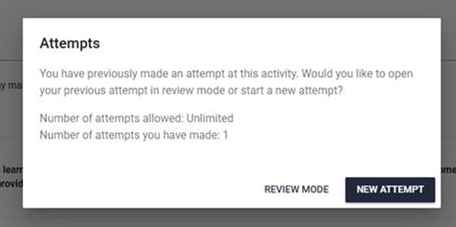
Review mode: Review mode takes you back to where you left off, but it is read-only.
- Your progress is not tracked.
- Any answers or actions are not saved.
- Your status will not change from Incomplete or In progress to Completed.
- You cannot complete the learning experience in this mode.
If you enter Review Mode, you will need to start a new attempt to complete the learning experience.

New attempt: Starting a new attempt allows your progress and responses to be recorded.
- You may or may not return to the exact point where you left off (this will depend on how the learning experience has been configured during development).
- Your progress will be saved.
- You can complete the learning experience to the requirement and receive a Completed status.
Why is a live learning showing as not completed?
Please check the Live Learning completion criteria to ensure you have completed all activities before contacting us.
All activities marked with an * must be completed.
Please ensure to read the instructions at the beginning and complete all the mandatory activities built within the Live Learning. Each Live Learning is configured differently - some may require you to attend a single session, participate in multiple sessions over a period of time, complete a pre-work module, or complete a workbook.
If the Live Learning is being run over multiple sessions, you will need to have your attendance recorded for all of the sessions to be marked as complete.
Issue with eLearn not loading
If you are having issues with loading or progressing through an eLearn, please try the following steps:
- Perform a hard refresh of the webpage, Shift + F5
- Try a different web browser: Please try using Microsoft Edge or Google Chrome, as they often provide a more stable playback experience.
- Clear your browser cache:
- Microsoft Edge: How to Manage and Clear Your Cache and Cookies | Edge Learning Center
- Google Chrome: How to Manage and Clear Your Cache and Cookies | Google Help
- If you are using a different browser, please search for the relevant steps.
If you still experience issues with the eLearn, please contact the APS Academy via the Contact Us webform
Why am I unable to play a video?
If you’re unable to play a video, it might be due to network restrictions set by your organisation. Please contact your IT Support team and see if they can ‘unblock’ the video source. Alternatively, you can try playing the video on a different network or device.
If you still experience issues with playing the video, please contact the APS Academy via the Contact Us webform
Multimedia activities showing as not completed
Multimedia activities such as videos and podcasts must be viewed or listened to in a single continuous session to be marked as complete. If you skip through the activity or exit the activity and then return, the activity will not be marked as complete. You will need to start the video or podcast from the beginning.
To minimize disruptions and avoid having the activity marked as incomplete, please consider:
- Checking your agency's ICT policies for device or software timeout durations. For example, check when your MS Teams status switches to inactive or your browser's inactivity timeout.
- Using Google Chrome or Microsoft Edge, which may offer more stable playback experiences.
- Checking the length of the multimedia activity so that you can block out time to watch or listen to it in full.
- Heading to a quiet space to avoid unnecessary interruptions.
System or Network issue? Quick test to tell the difference.
Sometimes learners have trouble accessing courses or resources on APSLearn. This simple check can help you work out whether the problem is caused by APSLearn (a system issue) or your agency's internet or IT settings (a network issue). Knowing the difference can help you get the right support faster.
What's the difference between a system issue and a network issue?
- A system issue means there's a problem with the APSLearn platform itself. This could affect lots of users across different agencies.
- A network issue means the problems is likely with your agency's internal network, firewall settings or device restrictions. This would usually only affect people within your agency.
Follow the below steps. You just need access to a work device and a personal device (like your phone or home computer).
- Try accessing APSLearn using your work device on your agency's network.
- Navigate to APSLearn, log in and attempt to access the content, activity or resource you're having trouble with.
- Take note, including screenshots, error messages, of the issue (e.g. page/resource not loading, video won't play).
- Now try accessing APSLearn using a personal device and personal internet connection.
- For example, use your mobile phone using mobile data or personal home wifi, or use a home computer on a home internet connection.
- Log into APSLearn and try to access the same content, activity or resource.
- Take note of what happens, again, including screenshots, error messages, of the issue (e.g. page/resource not loading, video won't play).
- IMPORTANT: This step is just for testing, please do not download any APSLearn content to your personal device.
- Compare the results.
- If it works on your personal device and personal network but not a work device on a work network. This suggests it's likely a network issue on your agency's side. You may need to contact your agency's IT helpdesk for support.
- If it doesn't work on either device/network. This suggests it could be a system issue with APSLearn. Please report the issue to Academy-LearningServicesandPlatforms@apsc.gov.au along with as much details as possible so we can investigate further.
Other helpful information
- Check for known system issues: Before reaching out, you can check id there's a known system-wide outage by visiting our vendor's live status page: Acorn PLMS Status. This page shows any current system problems and estimated resolution time.
- How internet speed, size file and network traffic can affect access: Even when APSLearn is working normally, you might experience delays based on your agency network setup or internet quality. Here's a quick overview:
- More people online = slower internet: If you're accessing APSLearn during peak times your internet connection may slow down, especially if you're sharing it with other in your home or office.
- Bigger files take longer to load: Video files, large documents or interactive modules can take longer to open, especially on lower internet connections. Try allowing extra time or accessing during low-traffic periods.
- Wi-fi quality: If you're using wi-fi, weak signals can cause content to load slowly.
- VPN and firewall settings may block content: Some agencies have strict security settings that prevent certain content from loading. This is another reason to test on a personal device and network.
How to report a completion issue
If you have completed an eLearning course, or attended a Live Learning via APSLearn but it shows as incomplete, please contact the APS Academy via the Contact Us webform with the following information:
- Name of the course or Live Learning.
- Time and date of event.
- Any relevant information you might have received from APSLearn.
- Any messages you might receive when accessing the course.
Note: Please take a screenshot of the current progress of the course, any messages you may be receiving and Training History, in case this information is required. We will request this information from you if we require it.
Enrolling in a Learning offering
How do I book a course on APSLearn?
Login to APSLearn to book one of our facilitated courses or eLearning offerings. Once logged in, you can view and enrol in our range of eLearning and facilitated courses. If your course has a fee, you will need to pay by credit card. We only accept MasterCard or Visa credit cards.
Can I book on behalf of someone else or book multiple people into the same learning experience?
Yes. Users with the Cohort Manager role can book courses on behalf of others within their organisation, including group bookings.
Cohort Managers usually work in:
- People or HR teams
- Learning & Development (L&D) teams
- Executive Assistant or Executive Officer roles
- Management roles that support larger teams
People who regularly book courses for others or make group bookings are given a higher credit card limit and are responsible for reconciling their credit card statements.
If you want to make an individual or group booking on behalf of others, please contact us to update your APSLearn profile.
If you are not sure whether your agency has a Cohort Manager, please contact your Learning & Development (L&D) team, or contact us for help.
If you are enquiring about SES leadership programs, please feel free to contact leadership@apsc.gov.au
Do you cater for accessibility and dietary requirements?
For virtual (Face-to-screen) and non-catered learning offerings, you will be asked to provide any accessibility requirements as part of the enrolment process.
For live (Face-to-face) and catered learning offerings, you will be asked to provide any accessibility and dietary requirements as part of the enrolment process.
When completing any course enrolment forms, please only include information necessary that will help us support your learning experience. Do not provide any personal information that is not necessary or required. For more information about your privacy and the APSC Privacy Policy, please visit privacy policy.
Most courses will have an accessible version available to access. If you are experiencing any accessibility issues or have an accessibility query, please contact the APS Academy via the Contact Us webform.
Prices and Payment Options
You may experience some disruptions if the following occurs:
- Invalid card - you have reached the credit card maximum limit, your credit card has been cancelled, the wrong credit card details were entered.
- Abandoned (Pending) payment – before finalising the payment, you may have closed the browser window or clicked on the browser back button.
What are the prices per course and session?
Prices are subject to change. The APS Academy prices are reviewed annually and are aligned with a new calendar or financial year. Prices may differ according to the type of course delivery and the time of year. For example, a ‘face-to-face’ course may be more expensive than a ‘face-to-screen’ option. A course offered in March may be cheaper than the same course in August, after the new financial year has begun. It is recommended to check the prices per session prior to purchasing.
Is GST included in the price?
All Live Learnings and courses offered by the APS Academy are GST exempt.
What type of payments do you accept?
Payment is made by credit card. We accept only MasterCard and Visa payment methods.
I wish to register for a course but don't have a credit card - What do I do?
If you have not been issued with a Departmental / Agency Credit Card we suggest you contact your manager or your Learning and Development team as they may be able to provide you with a credit card to use.
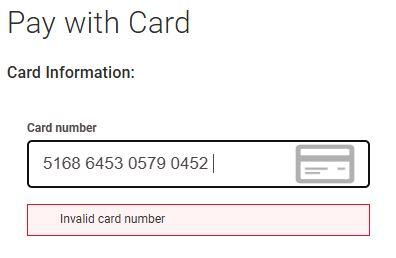
Invalid card number message
If you receive the following message(s) after clicking the Purchase button, please perform the below steps.
Note: The payment has not been successful, and your credit card will not have been charged.
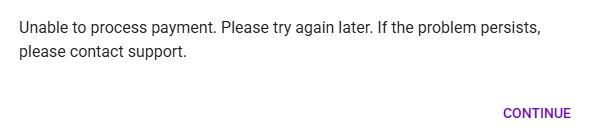
| 
|
Steps to rectify the above error:
- Refresh the webpage before reattempting.
- Check and repopulate the card details.
- If the above did not work, take a screenshot and email us with the attachment and the details of the course you were attempting to purchase.
You have pending payments message
If you receive the following message(s) when you go to the Checkout screen, this means that a previous payment was challenged and the workflow was interrupted before the credit card was verified.

What is a challenge workflow?
It is a more secure way to process a payment to reduce fraudulent behaviour. This will generally be controlled by the credit card issuer. Once you commence a payment you will be redirected to your credit card issuer's portal where you will need to provide an additional form of verification to validate that the purchase is legitimate. For example, you may have to enter in a one-time pin (OTP), a verification code or you have to use a 2-factor authentication application. Only when the challenge has been successful will the payment begin to be processed.
Steps to rectify the above error:
- Pending or Abandoned payments which are more than 24 hours old will be automatically cleared.
- If your payment is urgent, please contact us with the details of the course you were attempting to purchase, and we can escalate to the vendor to have the pending payment cleared ASAP.
Note: The previous payment has not been successful, and your credit card will not have been charged. You will not be able to process a payment within APSLearn until the pending payment has been cleared.
Was my payment successful?
Once you click the Purchase button, and if necessary, completed the challenge workflow, the Checkout workflow will commence. You will receive the following Checkout processing page:
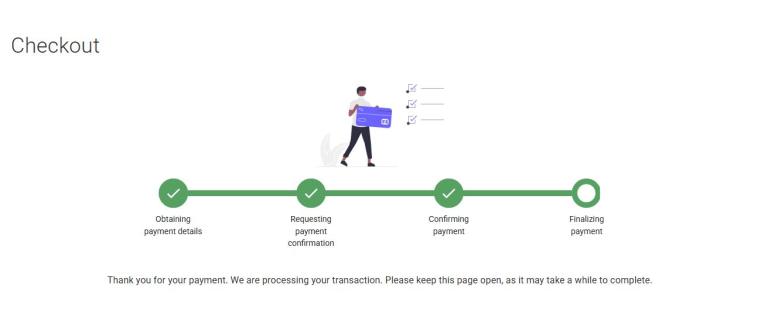
Once that process is completed, you will receive the following message:

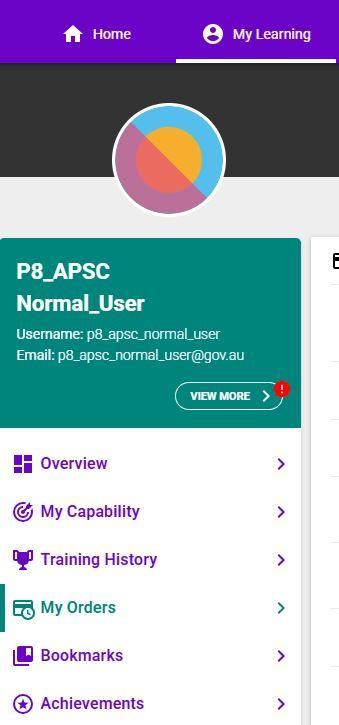
You are then able to view and print the receipt by either clicking on the "View My Orders" button, or through the My Orders menu link, from the My Learning tab on the APSLearn homepage.
Can I receive a tax invoice / receipt?
You are able to download a tax invoice via APSLearn. Use this step-by-step guide on how to download a tax receipt from APSLearn.
If you have trouble downloading the tax invoice, please contact the APS Academy via the Contact Us webform.
Can I receive an invoice for my course?
Unfortunately, we are unable to process invoices for courses under the value of $10,000.
For courses that are over $10,000 an invoice can be issued. During the enrolment process you will be asked to provide the following information:
- Name of the work area to be invoiced
- Invoice contact person
- Invoice contact number
- Invoice email address
- Purchase order number (if applicable)
You are not enrolled in the course until you receive an enrolment confirmation email. This will occur once an invoice has been issued and send to the nominated email address.
Invoices must be paid within 30 days.
Attending a facilitated session
Where are face-to-face courses held?
Most face-to-face training sessions are held at the APS Academy training venues in the Museum of Australian Democracy (MoAD), Old Parliament House in Canberra.
NB: Course locations can vary, please refer to the course listing in APSLearn and course email correspondence for specific locations.
What technology will I need to access my interactive virtual course?
We use various technologies to support virtual classes. Course details will outline what the types of technology you will require prior to your course commencing.
We recommend checking with your IT team to verify which applications your agency supports, as each agency IT network is configured differently.
In some instances, you may not be able to access the online classroom tool through your agency IT network. If this is the case, you may need to use your personal device and home internet network. To access the course you will need:
- a work/personal internet network connection
- a compatible work/personal device with an active camera (laptop/tablet/webcam)
- a private and quiet space, this is to help maintain the security and the confidentiality of participants.
There are no places available in my preferred course - What do I do?
To register your interest in attending a course, you can put your name on the waitlist. To do this, login to APSLearn, select the course, and click ‘Express your Interest’. You will be notified once additional dates have been added to the course calendar. It's also worth keeping an eye out for course announcements via the APS Academy website and signing up to the monthly APS Academy MyAcademy newsletter.
I can no longer attend my facilitated course or program - What do I do?
As per the Terms and Conditions, requests to cancel, reschedule or arrange a substitute need to be made in writing. This can be done by contacting the APS Academy via the Contact Us webform.
Please note your booking has not been updated until the APS Academy has contacted you to confirm.
I do not have access to a webcam - Can I still do my interactive virtual course?
Although participation in courses via webcam is preferred, you can participate without a webcam, as long as you meet the other access requirements. You must be able to join the meeting, view the facilitator and have audio to participate in the course.
Can the Academy deliver a course in-house, i.e. within my agency?
The Academy may be able to deliver some courses in-house. Please view the APS Academy course offerings page for more details.
Alternatively, please complete and submit the enquiry form and a member of our team will be in contact with you.
Agency Data Requests
Does your agency have a Reporting Officer?
A Reporting Officer can self-serve and run agency data reports from APSLearn. This means the agency can see which employees (based on their profile) have completed what training within APSLearn.
Reporting Officers are a registered user of APSLearn who have a clear business requirement to access reporting functions. A Reporting Officer is generally a person from the agency L&D team.
If you are unsure of who within your agency has Reporting Officer access or need to create one, please contact the APS Academy via the Contact Us webform.
How do I become a Reporting Officer?
If you have a requirement to access reporting functions on APSLearn you can submit a request via the Contact Us webform to be made a Reporting Officer. In your request, please include your agency and the team you are in (e.g. Services Australia, L&D team; or Services Australia, People team).
To be approved as a Reporting Officer you will need to complete the following courses before you will be given access.
I am a Reporting Officer and reports are taking a long time to run - What can I do?
You can schedule reports in APSLearn to run at specific times. We recommend scheduling regular reports and let them run overnight, especially for large reports. Utilising pre-sets and past reports can also help.
Use this step-by-step guide on how to run a report in APSLearn.
How to run a report – Acorn Help Centre
Use this step-by-step guide on how to schedule a report in APSLearn.
How to Set Up a Scheduled Report – Acorn Help Centre
If you have trouble running, or scheduling a report, please contact the APS Academy via the Contact Us webform with the following information:
- Name of the report you are trying to run or schedule.
- Time and date you were trying to run or schedule the report.
- Any messages you might have received when accessing the report or scheduled report.
I need data prior to January 2022 - What do I do?
For legacy data prior to the launch of APSLearn (1 January 2022), please contact the APS Academy via the Contact Us webform with the following information:
- Which agency are you representing?
- What is the purpose of the data request?
- Provide the start and end date of the time period the data request is for.
- The course type to be included in the report.
- Self-Directed
- Facilitated
- Both Facilitated and Self-Directed
- Please provide any further information regarding the data you are seeking.
You are able to request data for your agency under the Commissioner's responsibilities under the Public Service Act 1995. If approved, your data will only pertain to participants and bookings from your agency.
Please be aware that the data you are provided will meet the APSC's obligations under the Privacy Act 1988. As such the details of your request will also be collected under the Privacy Act 1988.
General Enquiries
What are the APSLearn Terms and Conditions?
You can read the APSLearn terms and conditions here: APSLearn terms and conditions.
What are CPD Points?
Continuing Professional Development, or CPD, is a commonly used term to describe activities that help us to learn, maintain, develop and improve the personal and professional qualities to strengthen our performance at work and helping us to progress in our careers.
CPD points are used for recording your Footprints journey. You collect footprints (CPD points) when you complete an activity and submit a reflection. There are four types of activities: Attending, Doing, Sharing or Immersing. Each type of activity is assigned a different number of footprints you can collect.
For more information on starting your Footprints journey:
- For APS wide learners the program link is: Program: Footprints.
- For APSC employees ONLY the program link is: Program: Footprints (APSC employees).
What is Partnered Content?
The APS Partner Content feature facilitates the sharing of learning experiences across Acorn catalogues, allowing users to discover more APS learning experiences directly from their agency’s learning platform. This feature simplifies the movement between systems, user registration processes and data sharing, enabling seamless tracking of learning progress with your agency’s system.
For information on partnered content and other share and reuse learning experiences, please click here.
Still have questions?
If you still need help or information on booking a course, please contact us.